|
Background Information / Cause:
When you record a transaction using Process Runner, after entering transaction code and providing logon credentials, SAP GUI many not show anything even after you wait for reasonable time.
You also checked by pressing ALT + TAB and minimizing all open windows to see if there is any SAP window waiting for your input. However, you cannot find any SAP GUI windows waiting for input anywhere and you cannot record the transaction. This behavior has been noticed with SAP GUI 7.20 with Patch level 12 (or lower), with SAP GUI 7.30 with Patch Level 0 when used with SAP backend system where Kernel version is 721 (or higher).
We suggest that you check if you have these specific conditions and environment and then follow the instructions provided below to resolve the issue

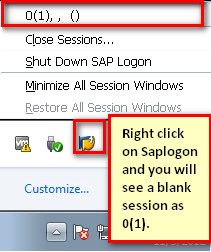
Right click on SAP logon in the Windows taskbar and you will see that SAP GUI is launched but is blank similar to the screen below.

Check the SAP Kernel version installed:
To check the Kernel version, login to SAP system where this problem is found and click on System pull down menu and then select Status… from the drop down menu and follow the steps in the next screen shot.


Check to see if Kernel version is 721 (or higher).
Check SAP GUI patch level:
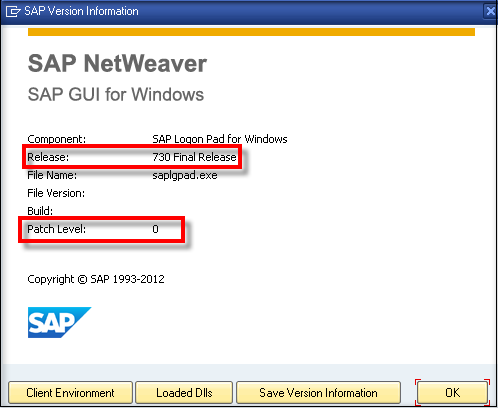
Now find SAP Logon Pad on windows system tray or on bottom application bar. Click on “Options…” on and click on ‘About SAP Logon…’ to see the installed patch level.


Suggested Solution:
| 1. | If your SAP backend system Kernel is 721(or higher) and SAP GUI is 7.20 with patch level 12 or lower, apply at least patch 13 or higher if you cannot move to GUI 7.30 – or migrate to SAP GUI 7.30 – or migrate to SAP GUI 7.30 with patch level 1 or higher. If you are already using SAP GUI 7.30, please ensure that you are not on Patch Level 0. Apply any patch that moves you up from Patch Level 0. |
| 2. | If you cannot apply the patch or upgrade SAP GUI as mentioned above, you may use another workaround as described in this section. You can get SHDB access in SAP, use SHDB to record user actions in the SAP GUI for a particular transaction to create the recording and import the recording in Process Runner. Refer the below steps to import the recording in Process Runner. |
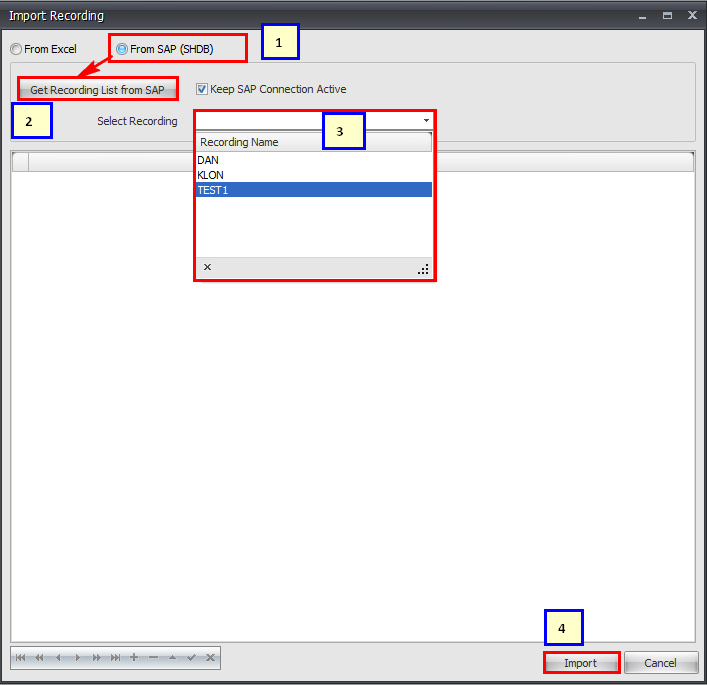
| a. | In Process Runner, click on Import Recording button. |

| b. | Choose 'From SAP(SHDB)' option. Click on 'Get Recording List from SAP' and enter valid SAP login credentials. Choose the recording done for the transaction from the list and click on Import button. |

This import will auto-map itself in the mapper of the Process file.
If any error is encountered on performing Step b, then refer the below steps to import the recording with 'From Excel' option.
| c. | In SHDB, click on Export icon to export the recording to an excel file. Change the Save as type to *.* and enter the file name with the extension xls or xlsx. Save the file. |

| d. | Go to the Process Runner, click on New Process icon. |
| e. | Click on Import Recording button. |
| f. | Select 'From Excel' option, browse that excel file and click on Import button. |

Please enter the Transaction Code and Process file name in the ‘New Process’ window for process file creation and click OK button. This import will auto-map itself in the mapper of the Process file.
When you record a transaction using Process Runner, after entering transaction code and providing logon credentials, "RFC ERROR LOGON FAILURE" error is displayed with 'invalid GUI data' in iNET Connector window. This behavior has been noticed with SAP GUI 720 with patch level 12 or lower.

Suggested Solution:
| 1. | To resolve this issue, SAP has provided an OSS note 1743605 to resolve such type of error occurrence. We suggest you to review and apply the OSS note. Consult your system administrator/SAP BASIS person to make changes in function module. |
Note: OSS note implementation is subject to your internal discussion.
| 2. | If you cannot apply the note then upgrade your SAP GUI to 720 with patch level 13 or higher or SAP GUI 730 with patch level 1 or higher. |
| 3. | If you have already upgraded the SAP GUI and still facing issue, please contact support@innowera.com and send us your SAP GUI information by clicking on 'About SAP Logon' in the SAP Logon Pad. |
|
If your issue is not resolved, please contact support@innowera.com with screen shot of specific error message and steps performed prior to encountering that error message.
Next:
How to resolve SAPLOGON_ID not found in saplogon.ini error message
|