Troubleshooting features – Test, Debug ALL, Debug Error and Error Processing Run

Previous  Home  Next
hmtoggle_plus11. Test Run

If you are not sure about the authenticity of your data, you can use this feature to test your data. This will not actually upload data to SAP. It will diagnose your data & give you appropriate message.

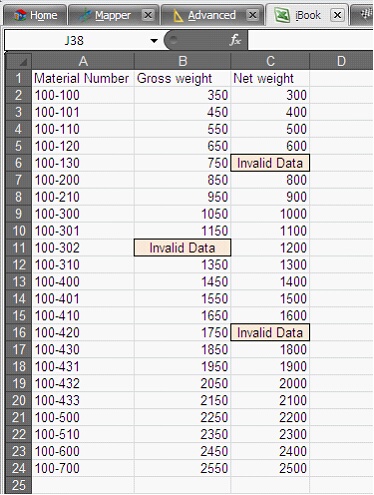
Take for example the following data sheet where we have invalid data at some places.


TestRun_data


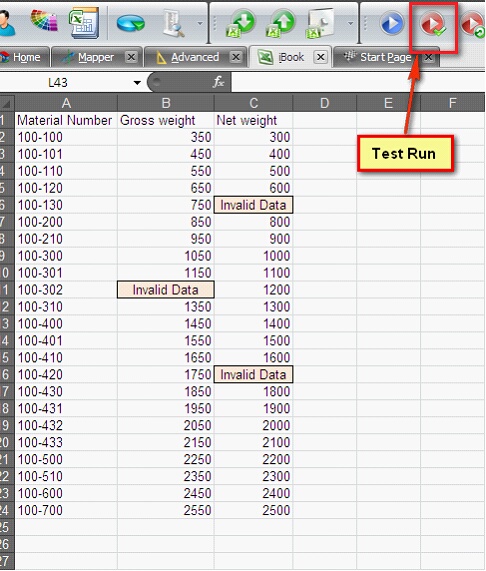
Click on Test Run Icon


TestRun_button


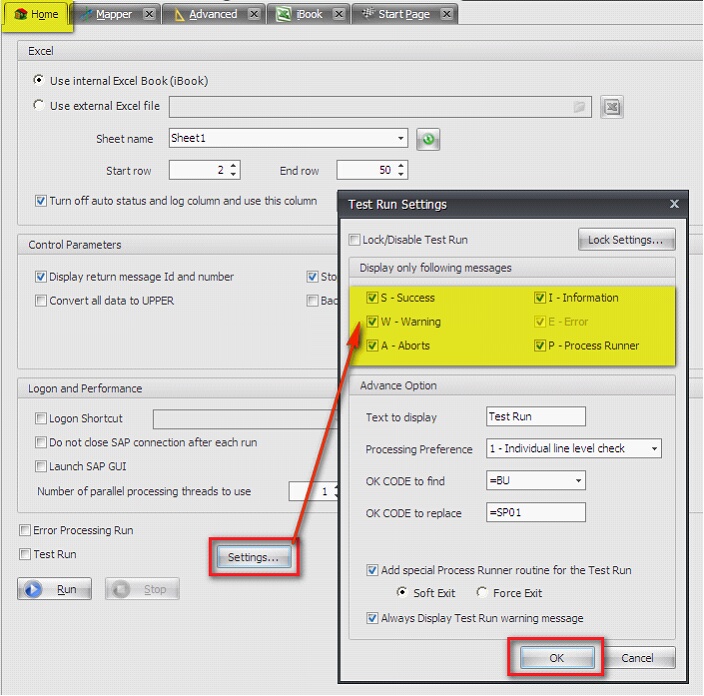
You will be prompted with a message to set your Test Run. If you want to change the Test Run Settings (related to Status Messages & OK_CODES) click on Settings in Home tab or else click on continue.


Testrun_msg


Testrun_Home


After test run, it will clearly display the appropriate message for erroneous data. In timers & progress section, it will also display the total number of error counts.


TestRun_final


Thus, knowing the data with error you can change it before actual upload to SAP.


hmtoggle_plus12. Debug All

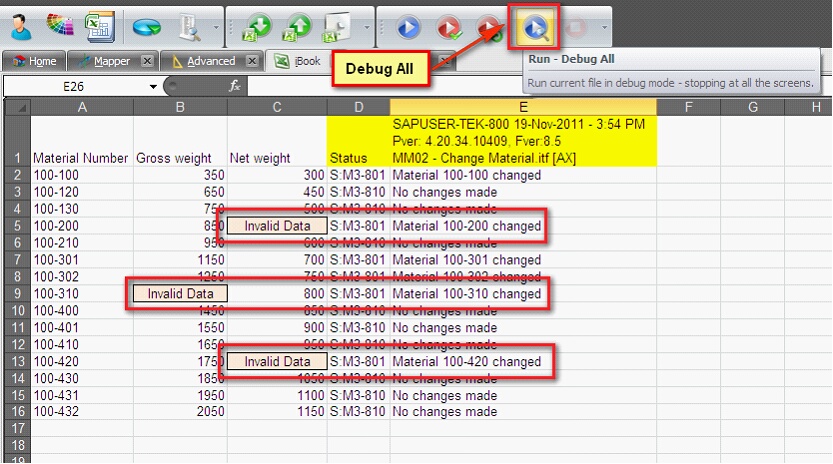
Debug – All allows you to go through screen by screen for each record in data sheet. You can troubleshoot the data screen by screen & change it during the execution of process file.


Debug_1


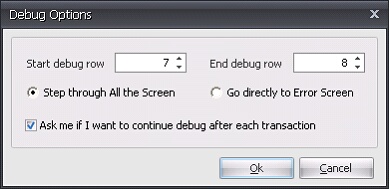
It will ask the “Start Row” & the “End Row” of the records that you want to Debug. By default, Step through All the screen will be selected which means Debug-ALL. The other option is for Debug – Error.


Debug_2

There is also an option (“Ask me if I want to continue debug after each transaction”) where in Process Runner will ask you whether you want to continue debugging after that transaction is over.

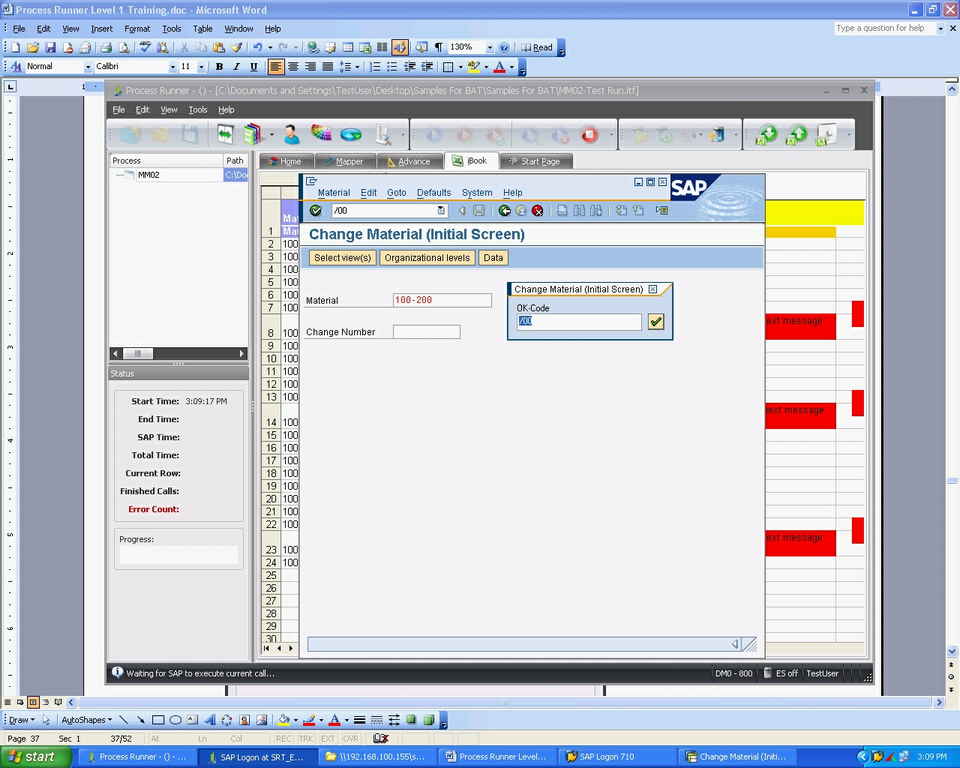
See below, it actually launched SAP GUI & will take you through it screen by screen.


Debug_3


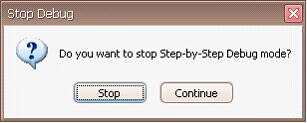
After debug is done, based on your selection it will ask whether you want to stop Step-By-Step Debug mode.


Debug_4


hmtoggle_plus13. Error Processing Run

Once you know where there is error in your data, you might like to focus & correct only those fields & proceed further.


EPR_1


Once aware of the data with error (that you get after test run), change the data to some valid values.
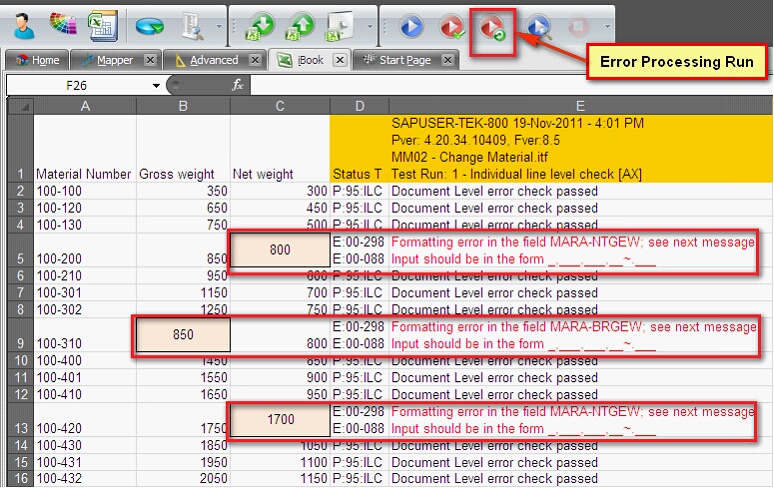
 

EPR_2


Click on Error Processing icon in the toolbar.

 

EPR_3


You can also do this by clicking on Error Count in the Timer & Progress display.
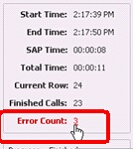
 

EPR_4


It will ask you to notify the Status column. From this it will pick up Status codes, if error code found it will re-process that record only or else leave it.


EPR_5


Click on OK. It will display the prompt that only data with errors found during test run will be processed.


EPR_6


Click on Yes & proceed further. As shown below, it will process the error records & upload the changed/valid data. Notice the Error count status to nothing.
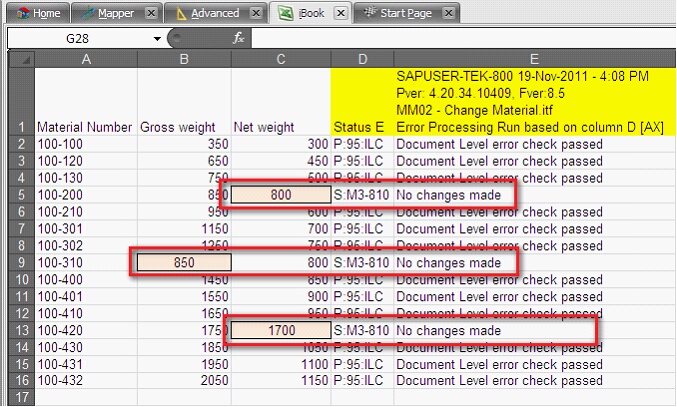
 

EPR_7


Next:

SAP GUI not visible or hangs during Transaction Recording