Custom Process
This topic describes how to configure the Custom Process options to run a script written in VBScript, JavaScript or VB.Net without the involvement of SAP. Typically, when pre-run or post-run scripts are run before or after the Process File run, an SAP connection is established. However, a custom process can be used to verify these scripts and run other external processes.
To create custom process
- Open the Process file for which you want to include the custom process script, select Edit > Custom Process. The Custom Process Script Editor window is displayed. Perform the following steps
- Select the Custom Process checkbox and select the language of the script from the dropdown list.
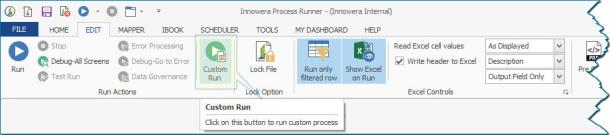
- To place a separate button on the tab to run the custom process, select Run as separate process. Enter the name of the button in the Custom Process button caption box and the tooltip for that button in the Custom Process button tooltip box.
- Enter the script in the Internal Script box.
- Select OK. The custom script is updated and the button for the custom run is displayed.
- To add a third-party library file that can be used in the custom VB.NET script in the Pre-Run iScript, Post-Run iScript, and Custom Process script editor, select Custom Library > Add. The Add Custom Library window is displayed. Perform the following steps:
- In the Library file box, browse to the location on your computer where the library file exists. Process Runner supports only 32-bit library file.
- By default, the name of the file selected in the Library file box is displayed in Library name box. Optionally, you can edit the name.
- In the Runtime path for library section, select one of the following options:
- Reference Path: Indicates the path on your computer where the library file exists, which will be used to run the custom script.
- Environment Variable: Indicates the variable name that you select from the dropdown list. The variable name is associated with the path in which the library file is placed. Select this option to share the Process file with other users, typically run-only users. To use this Process file, the run-only user must create an environment variable in the System Properties > Advanced tab > Environment Variables with the same name displayed here, and configure the path where the custom library file exists, after adding the library file.
- Select Pre-Run iScript, Post-Run iScript, and Custom Process depending on where you want to use the library file.
- Select OK. The library file with the configured details are displayed in the custom library grid.
 Screenshot: Custom Run button