If a user wants to convert the extracted CSV file into Excel, he/she can use a basic Pre-script feature that will convert a CSV file generated by Process Runner into a nicely formatted native Excel file.
Follow the below mentioned steps for needful conversion.
1.Open Process file and select Edit tab.
2.Select Pre Script in Custom Script And Delays Options section. Pre-Run/Post-Run Process Settings window appears.
3.On Pre-Run iScript tab, select Internal Script from drop-down option.
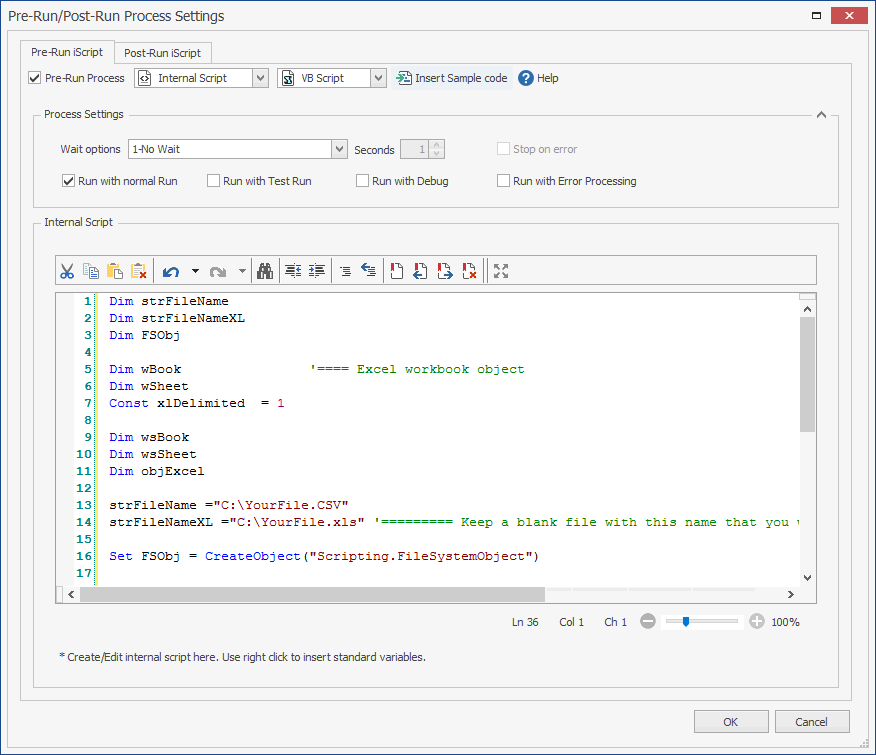
4.Configure the Process Settings as per the requirement.
5.In the script editor, remove the existing script and paste the script available below:

Dim strFileName Dim strFileNameXL Dim FSObj
Dim wBook '==== Excel workbook object Dim wSheet Const xlDelimited = 1
Dim wsBook Dim wsSheet Dim objExcel
strFileName ="C:\YourFile.CSV" strFileNameXL ="C:\YourFile.xls" '========= Keep a blank file with this name that you will use as an external Excel file
set FSObj = CreateObject("Scripting.FileSystemObject")
If FSObj.FileExists(strFileNameXL) Then Set wsBook = GetObject(strFileNameXL) Set wsSheet = wsBook.Worksheets(1) End If
Set objExcel = CreateObject("Excel.Application") objExcel.Visible = True
ObjExcel.Workbooks.OpenText strFileName,,,xlDelimited,,,,,,,True,"," '======= Here is is assumed that fields are separated by comma. If you want to use any other character as field separator, put that character here in place of comma ObjExcel.ActiveSheet.Cells.Select ObjExcel.Selection.Copy
wsBook.Application.Visible = True wsBook.Windows(wsBook.Name).Visible = True wsBook.Activate wsSheet.Cells("1","A").Select wsSheet.Paste
ObjExcel.CutCopyMode = False ObjExcel.ActiveWorkbook.Close false ObjExcel.Quit |
6.Save the file and run. The text file will be converted into Excel file.