Add Fields
This topic describes how to use the Add Fields option to add a field or screen after the recording is completed.
The Add Fields option is available only for Transaction and Data Extractor technologies.
To add a field
- Open the Process file that you want to update and go the Mapper tab.
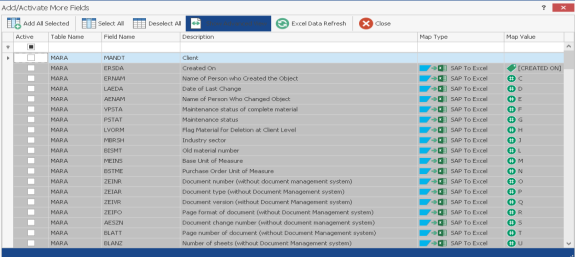
- Select Other Action > Add Fields. The Add/Activate More Fields window is displayed with the name and description about the inactive fields.
- Select Show Advanced View. The screen name and mapping type are also displayed.
- Select the field that you want to add, update the mapping type in Map Type column, enter the map value in Map Value column, and select Active. The field is added, activated, and displayed in the Mapper grid.
Note: You can also select the map value from the dropdown options, which are the Excel column headers.
- Select Close. The Add/Activate More Fields window is closed.
 Screenshot: Add/Activate More Fields window