
Process Runner Cloud for Administrators
This section is applicable only if your organization is using the Process Runner Cloud license model. For information about the Process Runner Cloud license model, contact support.
As a customer administrator, perform the following steps to create roles and users:
- Sign into the Process Runner Cloud URL for your organization that is provided by the Magnitude license team.
Note: The sign-in credentials are also provided by the Magnitude license team.
- Perform the following steps to add a role:
- In the pane on the left side, select Admin > Roles. The Roles page is displayed.
- Select Add Role. The Add Role page is displayed.
- Enter the information in the Name box which is a mandatory field.
- Optionally, enter the Normalized Name and description for the role.
- Expand the following modules to select tasks that the users for the role can perform:
- Control Panel: Allows users to perform Control Panel tasks, such as managing queries or rules.
- Process Runner: Allows users to use Process Runner to design and run Process files.
- Administrator Privileges: Allows users to perform administrator tasks, such as managing roles or users.
- EShare: Allows the user to perform EShare tasks, such as sharing EShare files or editing the EShare files.
- Select Save. The user role is added.
- After creating the role, perform the following steps to add a user:
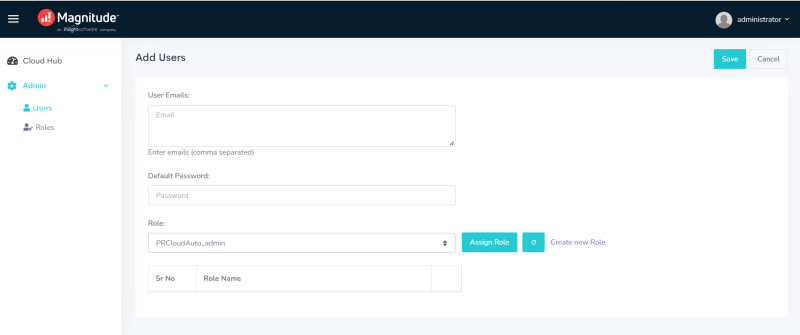
- In the pane on the left side, select Admin > Users. The Users page is displayed.
- Select Add Users. The Add Users page is displayed.
- In the Email field, enter the email ID for one user. To add multiple users, enter their email IDs by separating them using a comma.
- Enter the display name, and password.
- To assign a role to a user, select a role from the Role dropdown list and select Assign Role. The role is assigned to the user.
- Select Save. The user is assigned the selected role.
- If the user is assigned a user role that has Process Runner also selected, assign either the run-only or designer permission for the user as follows:
- In the pane on the left side, select Cloud Hub. A page with Cloud Hub section and Apps section is displayed.
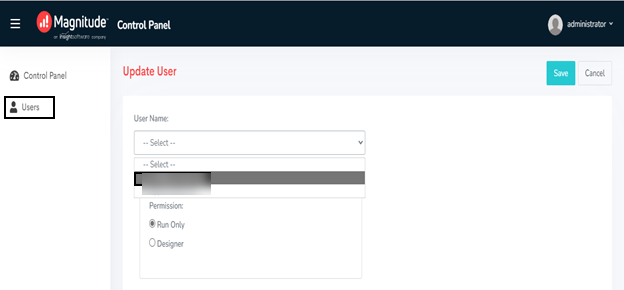
- In the Apps section, select the Control Panel tile. The Control Panel- Users page is displayed.
- In the pane on the left side, select User. The Users page is displayed.
- Select Update User. The Update User page is displayed.
- From the User Name dropdown list, select the user and assign either the run-only or designer permission.
- Select Save. The user is assigned the required permission to use Process Runner.
 Screenshot: Add a user role in Process Runner Cloud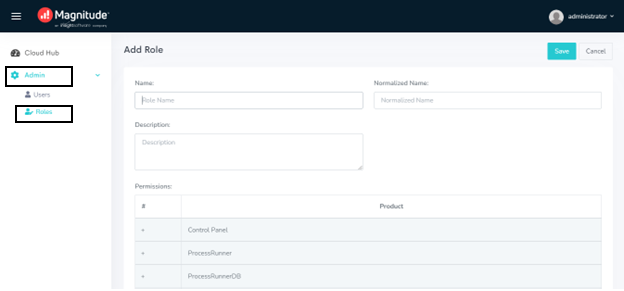
The users can now access Process Runner Cloud and perform tasks depending on the role assigned to them.