|
Following are the various mapping types supported in GUI Script module:
Where you know that number of detail rows is always fix, say 4 rows.
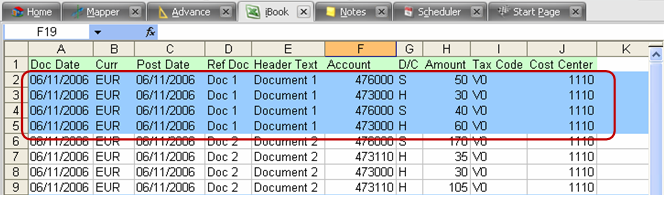
The mapping should be as below
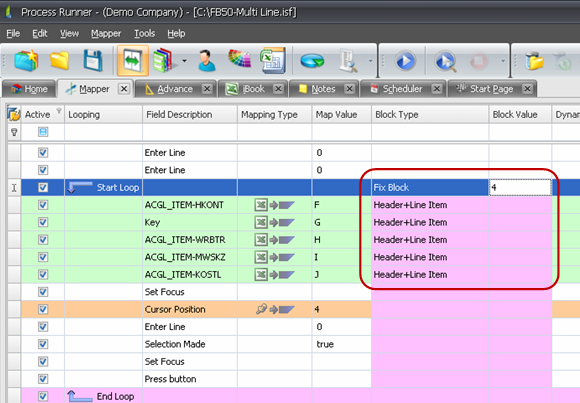
|
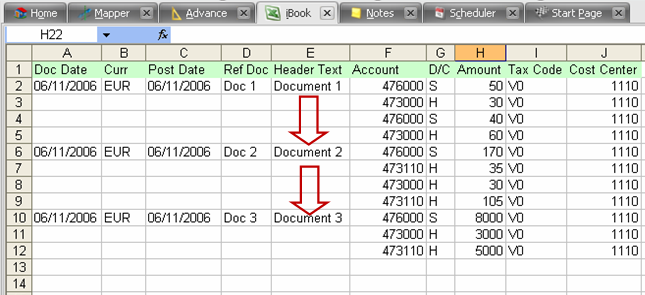
In this type, Process Runner automatically determines new transaction when value changes. For example, you have Document number repeated for each line in column E, You can use this mapping type and every time there is new Document number, Process Runner will start a new Header-Detail transaction automatically.
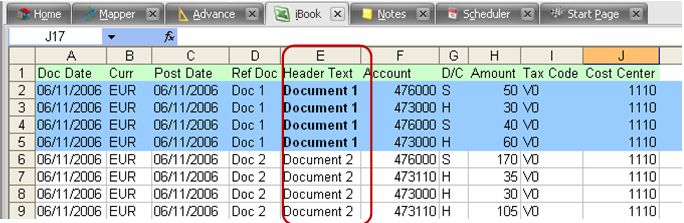
The mapping should be as below
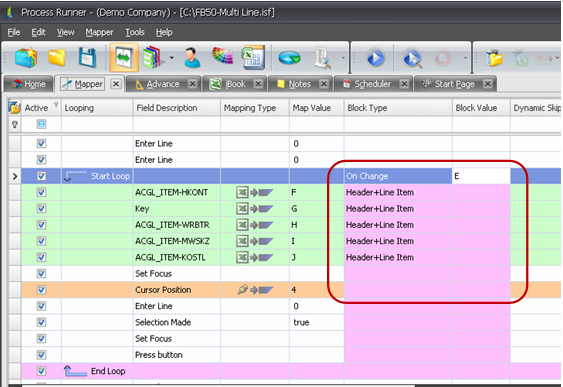
|
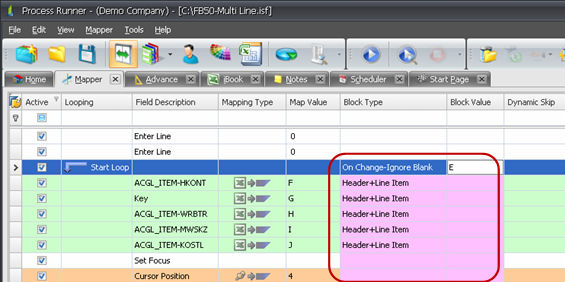
Same as 2, but instead of repeating Document number, you have blanks between Document numbers. Since a blank is a change, you want to tell Process Runner to ignore blank for considering them as a change. With this mapping type, Process Runner will ignore those blank and will repeated new Header-Detail transaction when it encounters new Document number in column E.
Mapping should look like
|
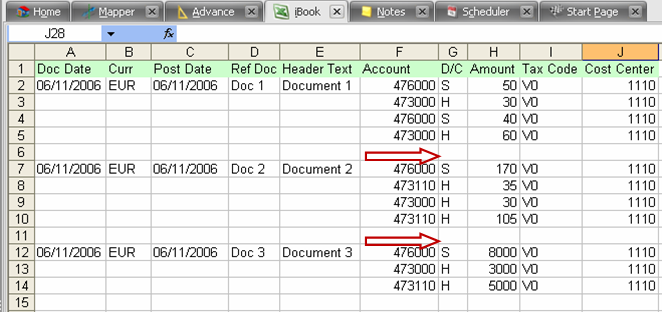
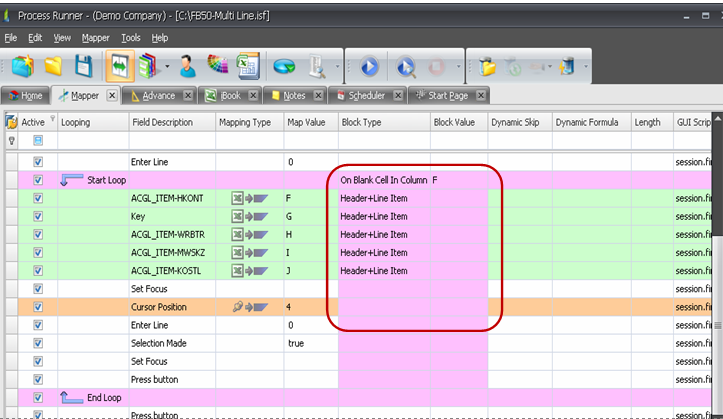
For example, you are separating Header-Detail block by placing a blank line between each block of Header-Detail transaction. You can use this mapping type and anytime Process Runner encounters a Blank Cell in mapped column, it will automatically start new Header-Detail transaction.
Mapping should look like as below
|
Same as 3, but instead of changing value, it will always start a new transaction when it finds a value in the column whether it’s same or different. It will ignore blank.
In the below example it will consider line 6 as new header-detail transaction even though the document header text is similar to previous one.
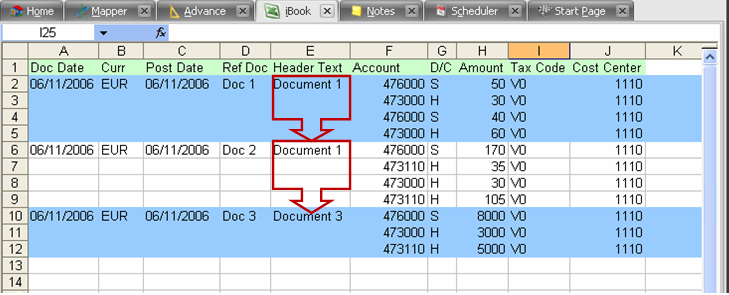
Mapping should look like
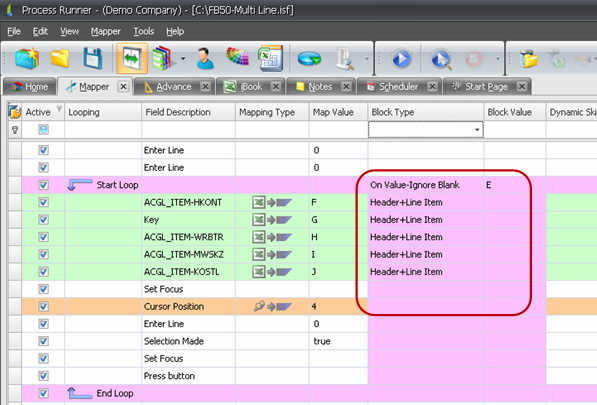
|
Additionally to above mentioned methods, you can also specify which rows to be used as header and which to use as a detail in a separate column. As shown below, Headers are named as H and detail as D. You can give any user defined names to header-detail items instead of just H & D.
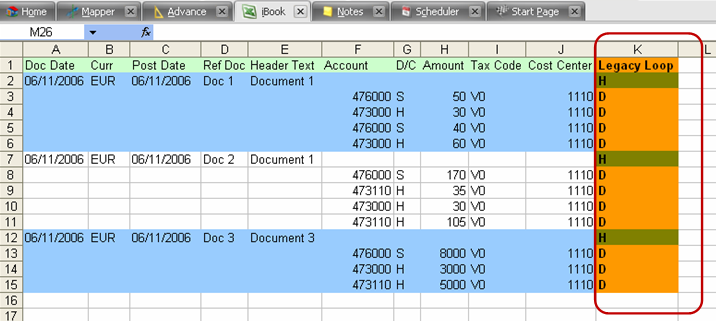
In Mapper below, K indicates the Legacy loop column & H and D indicate Header & detail items respectively.
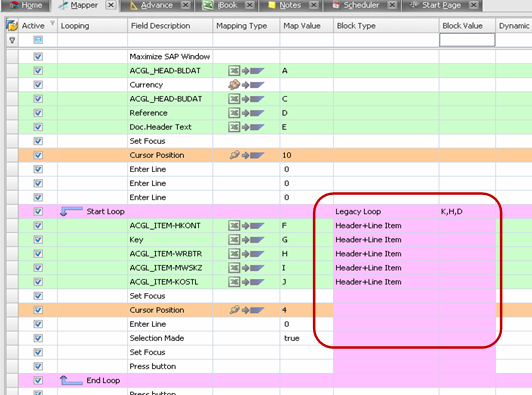
|
Next:
Data Extractor - Basic
|


