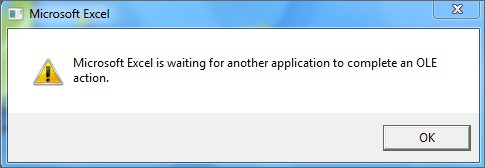
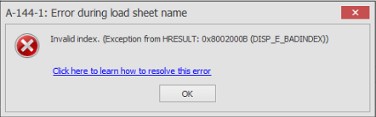
How to resolve Microsoft Excel is waiting for another application to complete an OLE action issue error & A-144-1 : Error during load sheet name


How to resolve Microsoft Excel is waiting for another application to complete an OLE action issue error & A-144-1 : Error during load sheet name |
|
|
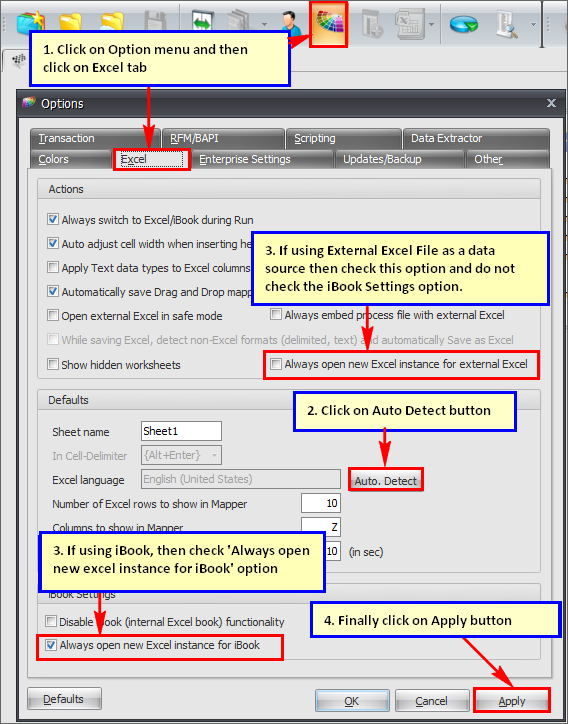
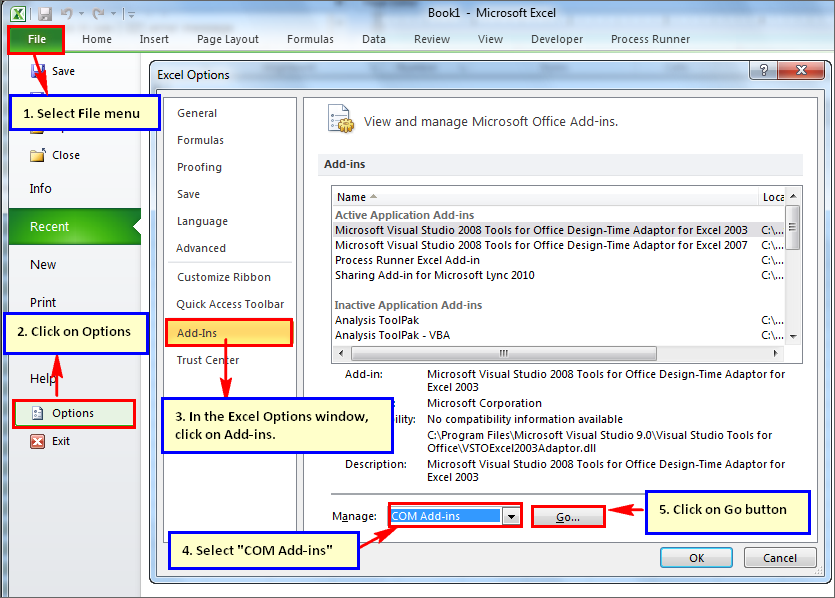
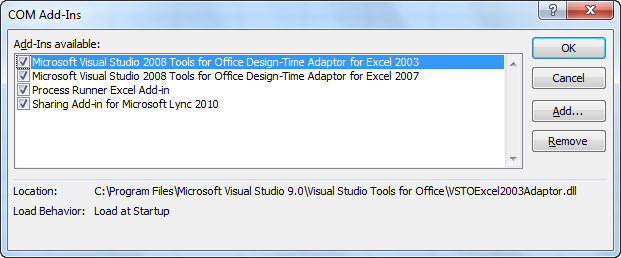
In Process Runner, iBook provides an integrated Excel with in Process Runner and allows users to perform all Excel operations from Process Runner. Users can also use any external excel file as a data source. At times, you may experience issues with Excel (iBook/External excel file). Here are some of the most common problem areas: i.Excel temporarily lock issue on clicking iBook. ii.Add-ins in Excel causing issue while using iBook / external excel. iii.Scheduler hanging issues due to excel. iv. Error messages displayed while using Excel 2013 or Office 365.
Suggested Solutions: This section provides you with the steps on how to troubleshoot the problems and the possible remedies to the correct them. Please note that Process Runner will work only with the MS Excel installed locally.
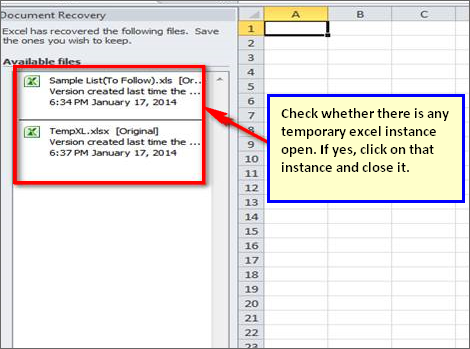
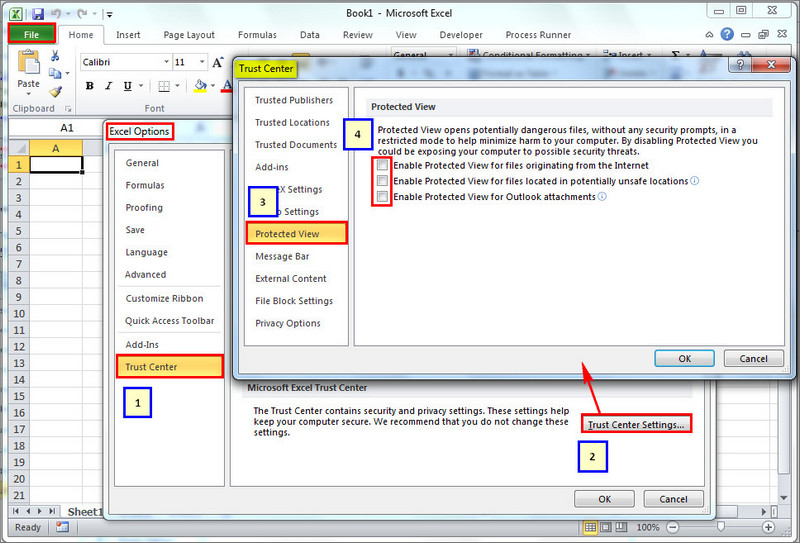
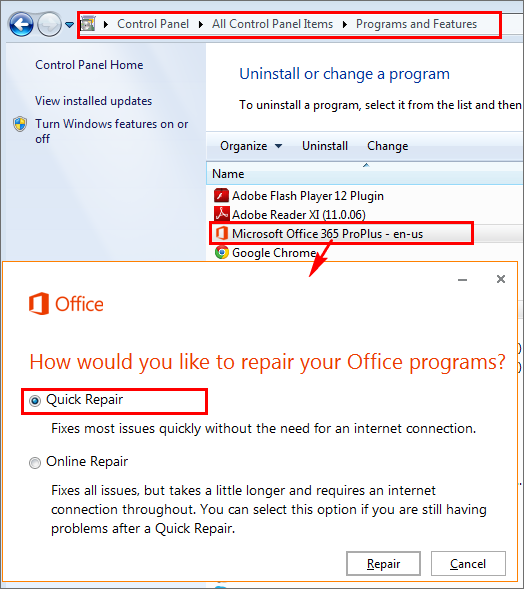
a)Close all the running instances of Process Runner and MS Excel. b)Go to “Task Manager” (CLT+ALT+DEL and select Task Manager). Go to “Processes” tab and ensure that there are no ‘Pror.exe’ and ‘Excel.exe’ instance running. If any instances are found, then kill those instances. c)Delete iBook.xls or iBook.xlsx file from My Documents\Innowera\Other folder. d)Open the Excel from Start menu and check whether any temporary instance is open or not as shown in below image. After you have followed the above mentioned steps, open the process file and check whether you are able to use iBook or external excel without any issue. If you are still facing problems with iBook or excel, you may use few possible workarounds as described in this section.
Next: |