How to resolve iNetConnector SAPLOGON_ID not found in saplogon.ini error message


How to resolve iNetConnector SAPLOGON_ID not found in saplogon.ini error message |
|
|
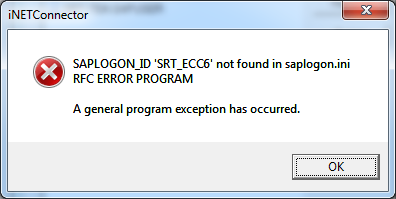
When encountering error message iNetConnector 'SAPLOGON_ID 'SAP System' not found in saplogon.ini, RFC Error Program similar to the one shown in below screenshot, please follow the given instructions.
Background Information/Cause: This error is due to Process Runner not being able to communicate with the SAP System Server and usually occurs when you have more than one saplogon.ini file in your SAP system.
Suggested Solutions:
A) Check saplogon.ini file path
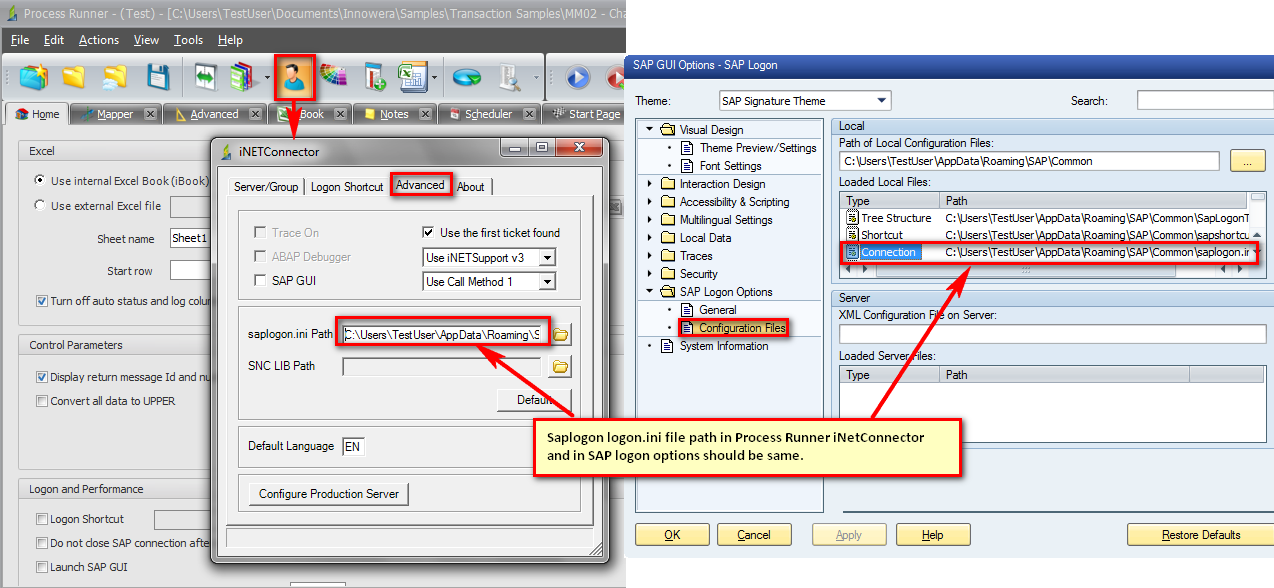
Please check the saplogon.ini file path in SAP system and make sure it is same as in Process Runner iNetConnector saplogon.ini file path.
Steps to check the path in SAP System and Process Runner are as follow:
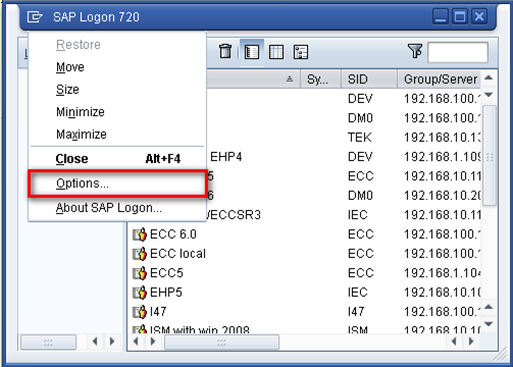
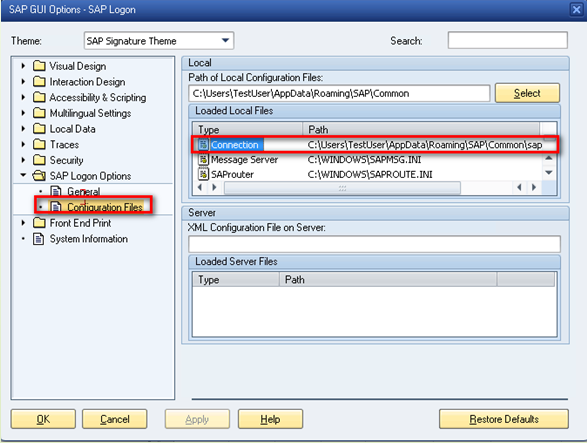
1.To check the path for SAPLogon.ini in SAP, click on Options > SAP Logon Options > Configuration files and check for the path mentioned for 'Connection' type as shown in the below screenshot.
2.Start the Process Runner and click on Logon Pad.
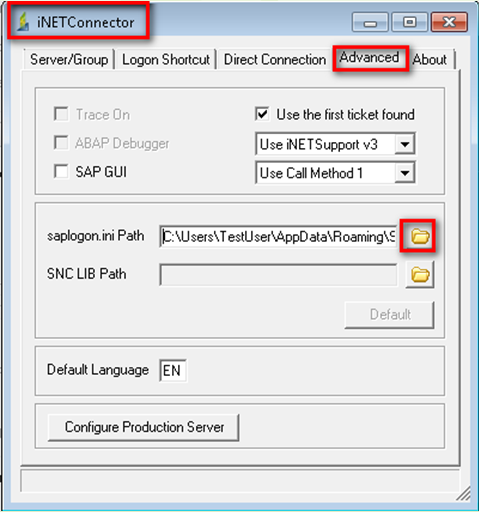
In the iNetConnector window click on Advanced tab and make sure that "saplogon.ini" path is same as found in the above step. If not, browse and change the path.
B) Saplogon.ini Troubleshooting
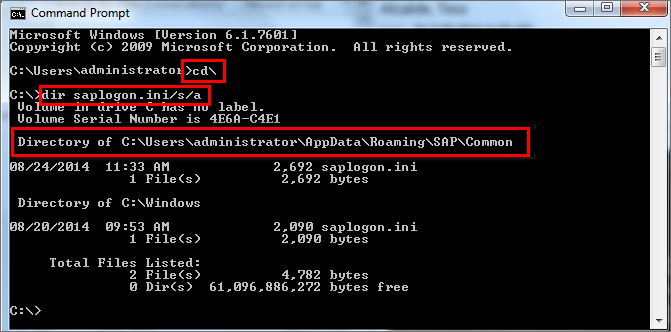
•Search for the saplogon.ini file on your system. i.Open the Start menu by clicking on Start button or pressing Windows logo key. ii.Type CMD to open Command Prompt. iii.Switch to the root-search-folder (go to C: drive by using cd\ command and hit Enter) iv.Type dir saplogon.ini/s/a and hit Enter to use the path of saplogon.ini file present on your system.
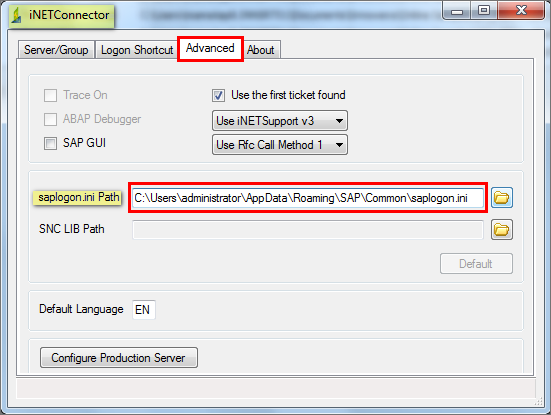
•Start Process Runner and click on Logon Pad. In the iNetConnector window click on Advanced tab and make sure that "saplogon.ini" path is same as found in the above step. If not, browse and change the path.
After providing the path click on “Server/Group” tab and verify whether you are getting the correct list of SAP system or not.
Please note that there could be instances where the newly added SAP system is not displayed in iNETConnector list even if the path of saplogon.ini file "C:\Windows\saplogon.ini" is same in both Process Runner iNetConnector window and SAP Logon Options. This usually happens when user manually adds SAP system in SAP front end leading to auto creation of saplogon.ini file in %APPDDATA%\Roaming\SAP\Common folder. In this situation, follow the below mentioned workarounds to resolve the issue.
i.Check for the saplogon.ini file in the roaming user application directory ( %APPDDATA%\Roaming\SAP\Common) and if file exist then map this in iNETConnector->Advance tab.
After updating this path if you still encounter "SAPLOGON_ID not found" error in Process Runner during login to SAP then follow the below solution.
ii.Contact your IT Administrator to update C:\Windows\saplogon.ini file.
C) Other Options
1.If the above solutions do not work then upgrade Process Runner to latest version which would provide you with 'Logon Method' option to resolve this issue. This option automatically switches between methods to sort the above issue . User can map any saplogon.ini file in iNETConnector of Process Runner which may or not match with that present in SAP logon pad.
Expand the 'Advanced SAP Logon properties' section to know more on the Logon Method option present under 'Logon.ini values' tab.
2.If the above suggestions do not help then ,please contact us at support@innowera.com with the error screenshot and an explanation of what you have already tried.
Next: |