How to resolve “iNetConnector - Connect to message server failed” error message


How to resolve “iNetConnector - Connect to message server failed” error message |
|
|
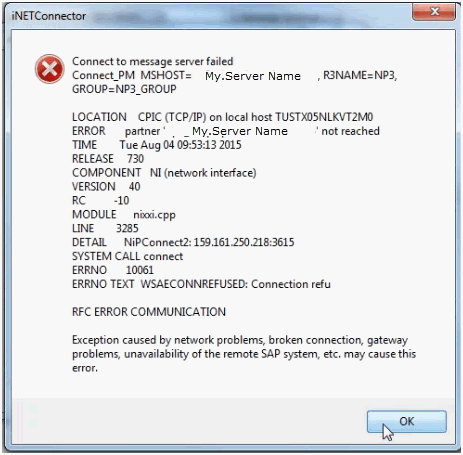
When encountering error message similar to mentioned below, please follow below instructions.
Background Information/Cause: This issue occurs when some change are made on Network side, either some ports are closed or some new one are opened. Due this change you will receive this error.
Suggested Solutions:
1.Check SAP Logon files path
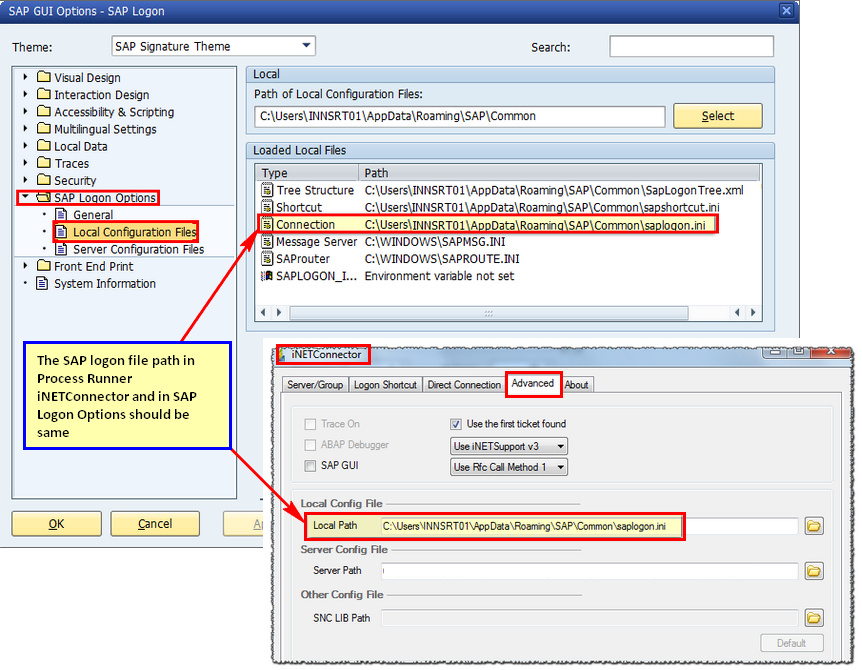
SAP saves SAP Logon pad entries in SAP logon files <saplogon.ini/sapuilandscape.xml>. Please check and ensure that SAP logon file file path in SAP system is same as in Process Runner iNETConnector Local path.
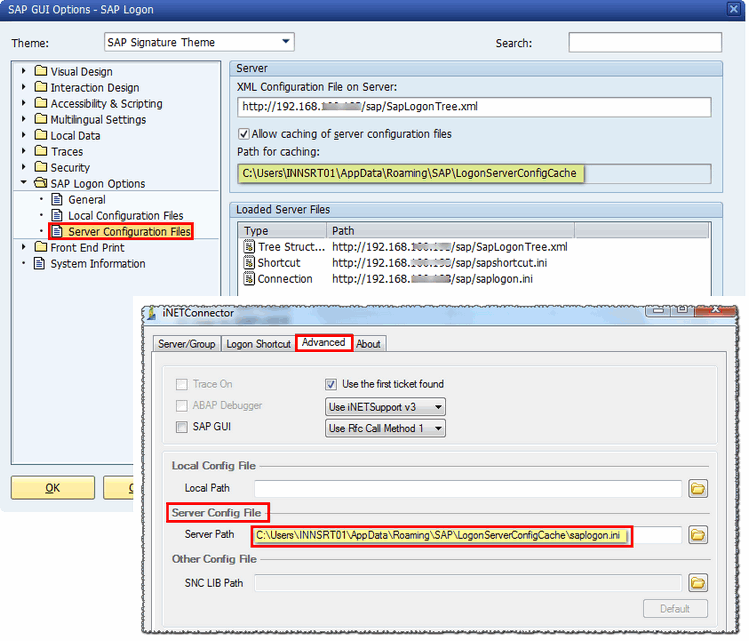
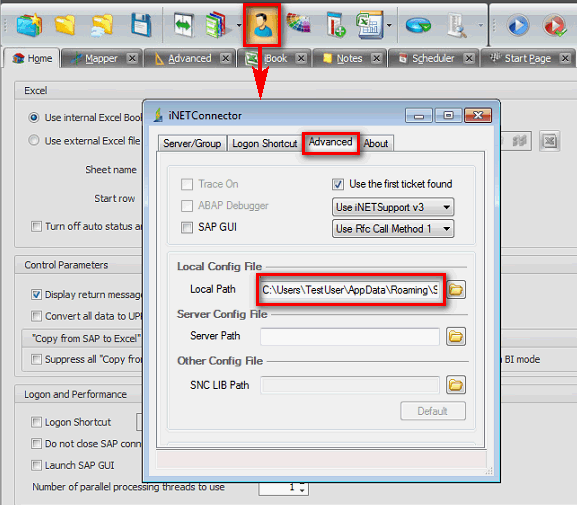
It is possible that saplogon.ini and SapLogonTree.xml are stored in a shared location on a server and have SAP Logon configured on the user workstation to use these shared files instead of the local ones. So always check that sap logon file path mentioned in SAP Logon is same as in Process Runner iNetConnector Server Path.If not, make the changes in iNET Connector > Advanced > Server Path.
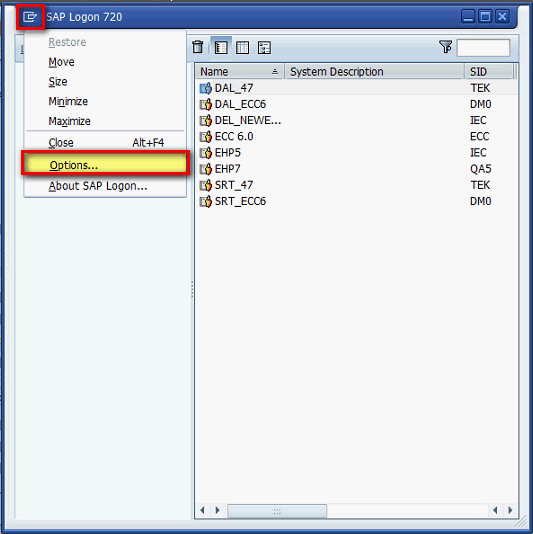
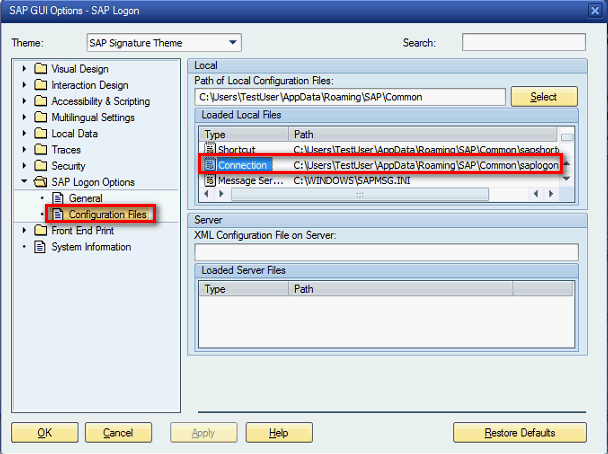
Steps to check the saplogon.ini file path in SAP System are as follow: i. Start SAP Logon and click on ‘Options’.
ii. In SAP GUI options window, click on SAP Logon Options -> Configuration files and check the path mentioned for ‘Connection’ type as shown in below screenshot.
Steps to check the saplogon.ini file path in Process Runner are as follow: i. Start Process Runner and click on Logon pad.
Click here for details about 'Server Config Path' if user workstation are to use the SAP Logon shared files from server.
2. Check SAP system properties
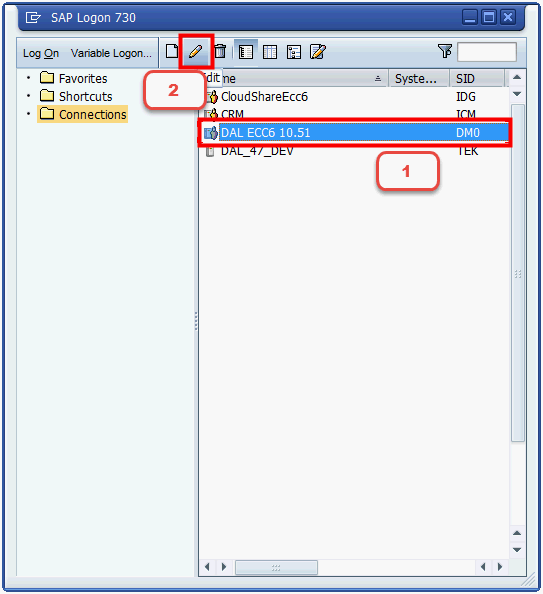
iv. If you see Error saying ‘Message Server has been changed; to save all updates choose OK’. Click ‘OK’. Note: Once you click ‘OK’ Instance Number: will change in SAP.
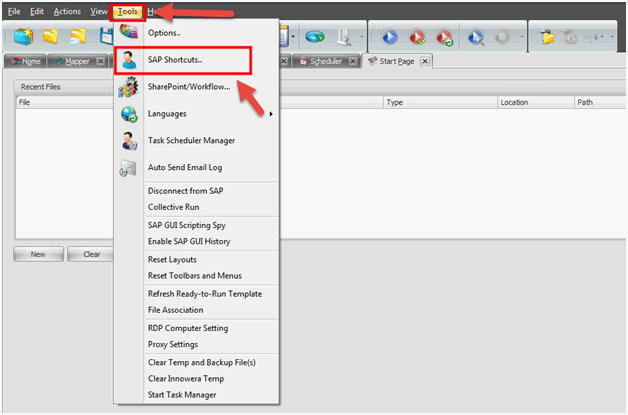
v. Open Process Runner click on ‘SAP Shortcut’ from ‘Tools’.
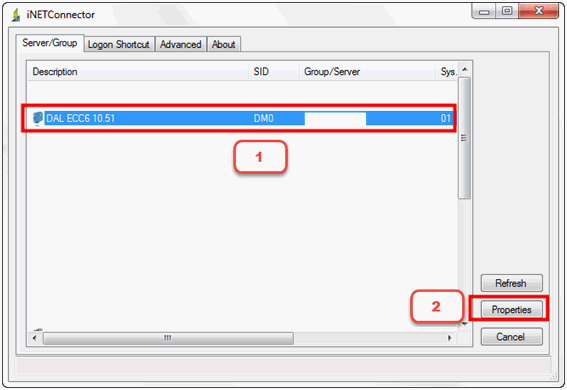
vi. Select the targeted SAP system and click ‘Refresh’ and Click on ‘Properties’.
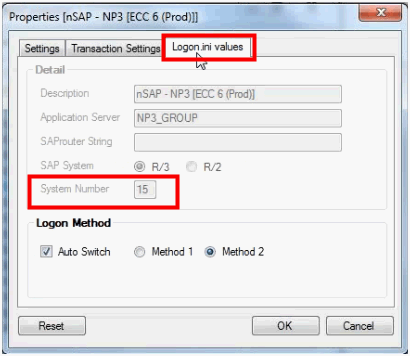
vii. Check if the Instance Number is changed in Process Runner under ‘Logon.ini values’.
viii. Try to ‘Run’ your process file normally and see if issue is resolved.
If you are still facing issue please contact support@innowera.com.
Next: |