
Transaction - Header Detail
This topic describes the block types that deal with multi-line (Header detail) documents by using loops. There are six ways to tell Process Runner how your Excel data is organized for a multi-line document.
- Fix Block: Where you know that number of detail rows is always fixed. Sometimes, you may want to run a loop for the same set of fields multiple times, defining the number of times you want to reprocess the loop. You can achieve this behavior using the Fix Block type for the block type and having a fixed value.
To run a loop multiple times
- In the Mapper, select the Start Loop and End Loop for the fields that you want to include in the loop.
- In the Block Type column, select Fix Block and define the number of times you want to run loop in the Block Value column. For example, 2.
- For the fields within the loop, select the Fix Single Value, System Value, or Excel Cell Value as mapping type.
- Save the Process file and select Run.
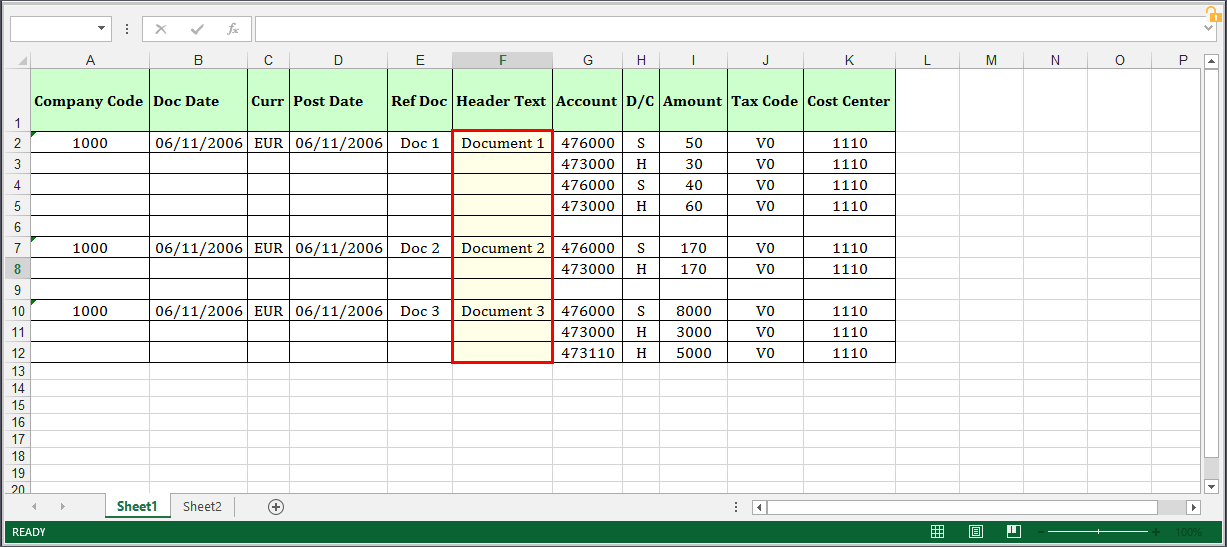
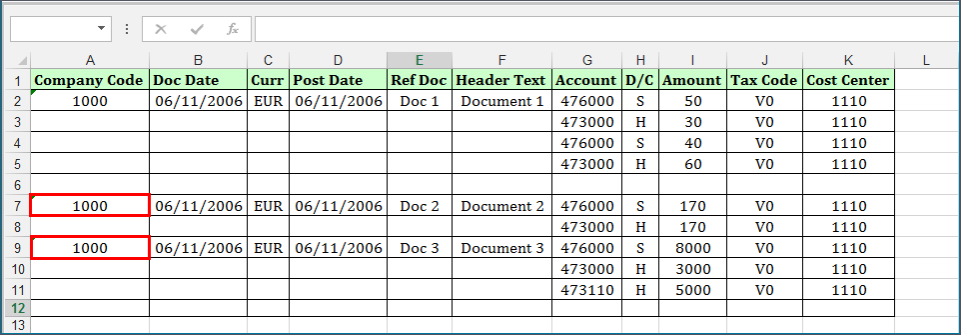
- On Change: Process Runner automatically determines a new transaction when the value changes. For example, you have document number repeated for each line in column
F, you can use this block type and when there is new document number, Process Runner starts a new Header-Detail transaction automatically. - On Change Ignore Blanks: Is the same as the On Change option, but instead of repeating the document number, you have blanks between the document numbers. Because a blank is a change, you want to tell Process Runner to ignore blank for considering them as a change. Process Runner ignores the blank and repeats the new Header-Detail transaction when it encounters new document number in column
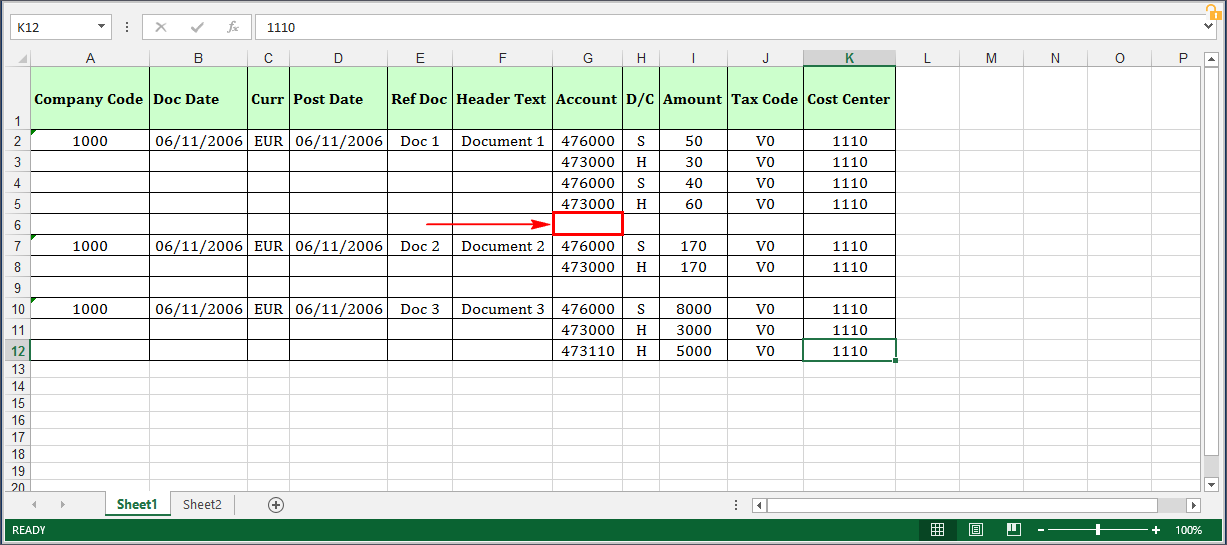
F. - On Blank Cell In Column: For example, you are separating Header-Detail block by placing a blank line between each block of Header-Detail transaction. When Process Runner encounters a blank cell in mapped column, it automatically starts new Header-Detail transaction.
- On Value Ignore Blank: Because a blank is a change, you want to tell Process Runner to ignore blank for considering them as a change. Process Runner ignores the blank and starts a new loop when it encounters a value in column
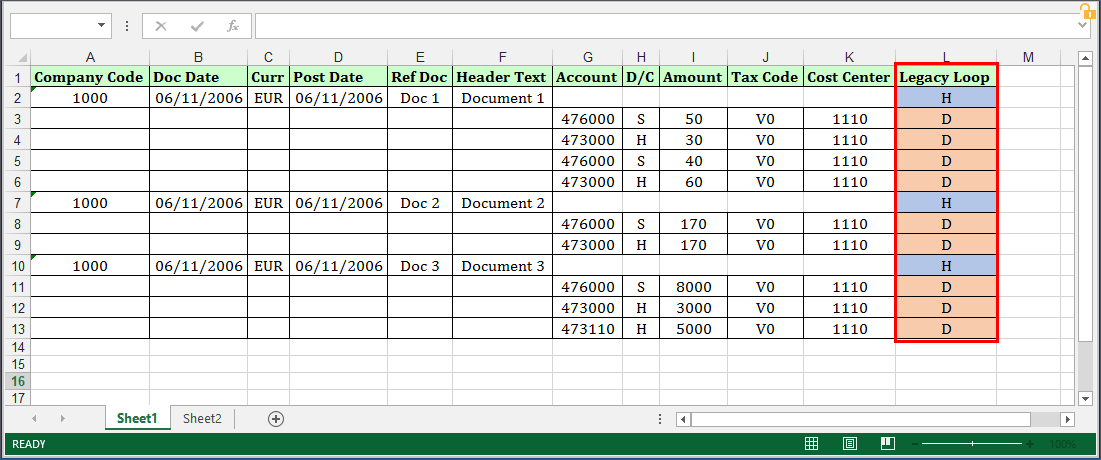
A. - Legacy Loop: (Available only Transaction technology only) You can also specify which rows must be used as header and which rows must be used as a detail in a separate column. As shown in the following screenshot, headers are named as
Hand detail asD. You can give any user-defined names to header-detail items instead of just H and D.In the following screenshot of the mapper,
Lindicates that the legacy loop column contains the header and detail items.
 Screenshot: Excel file with Data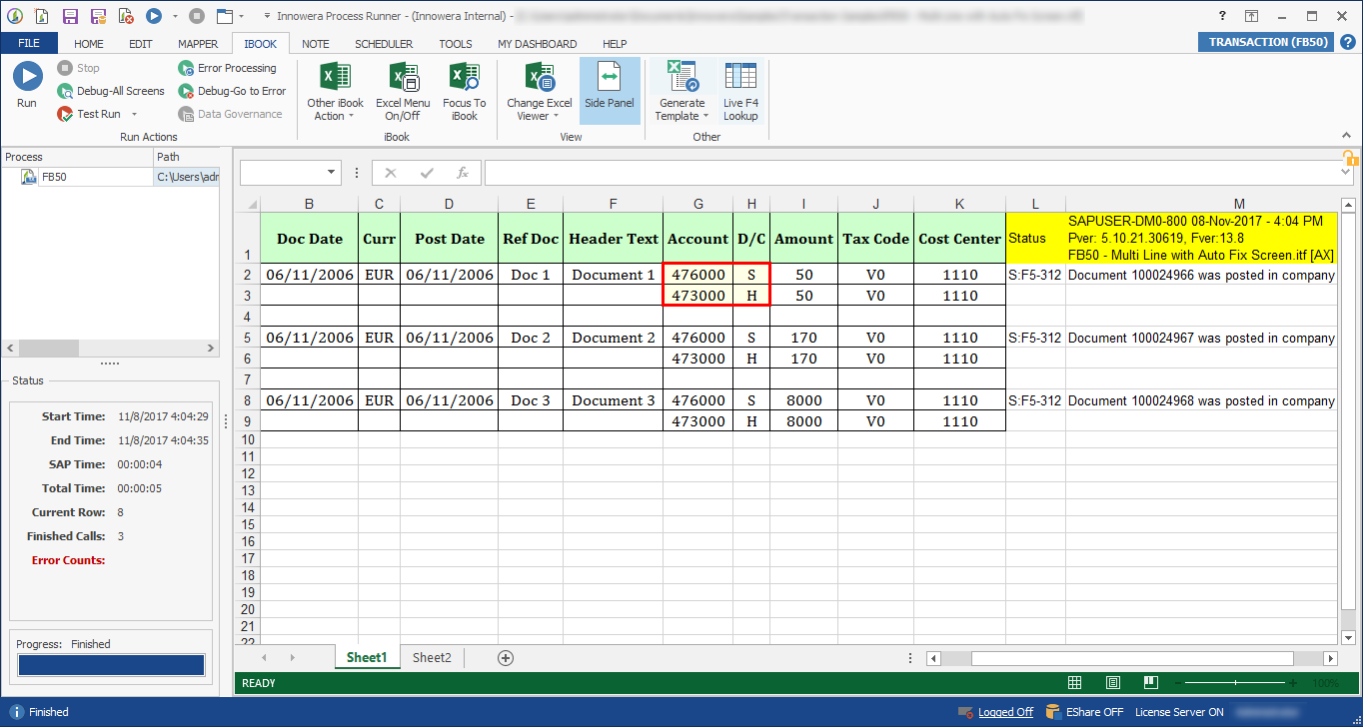
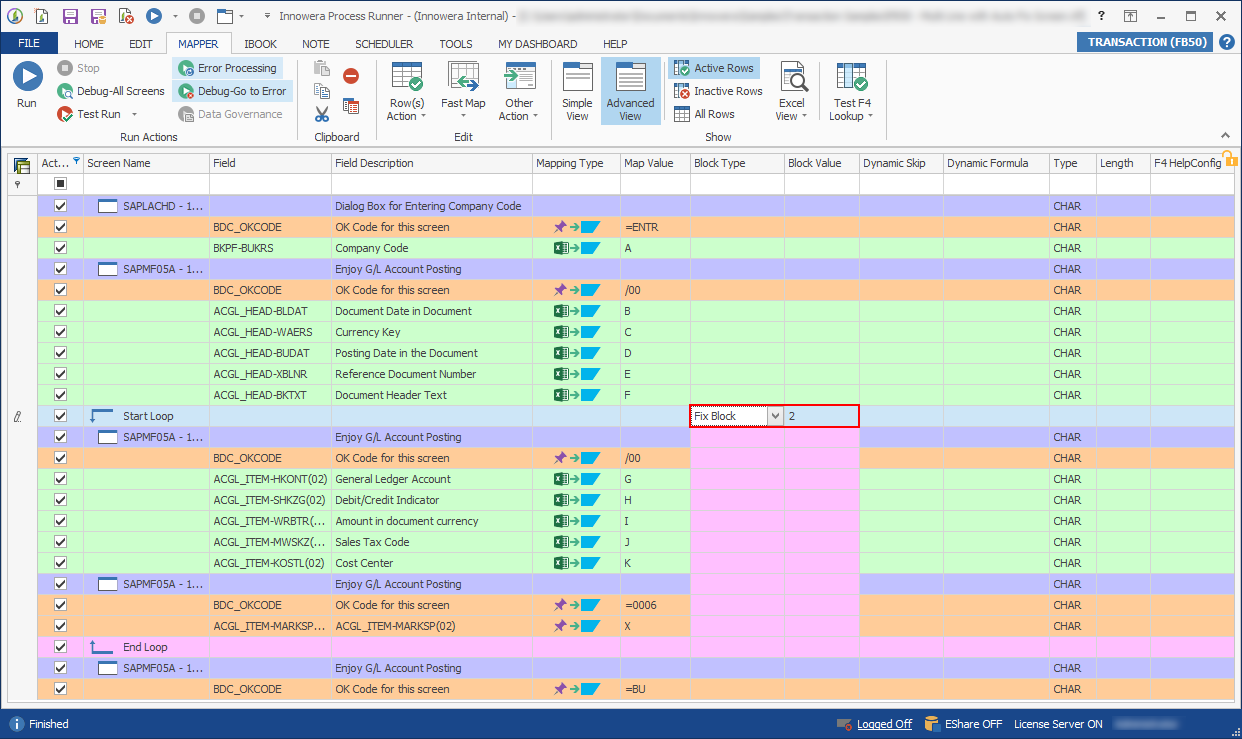

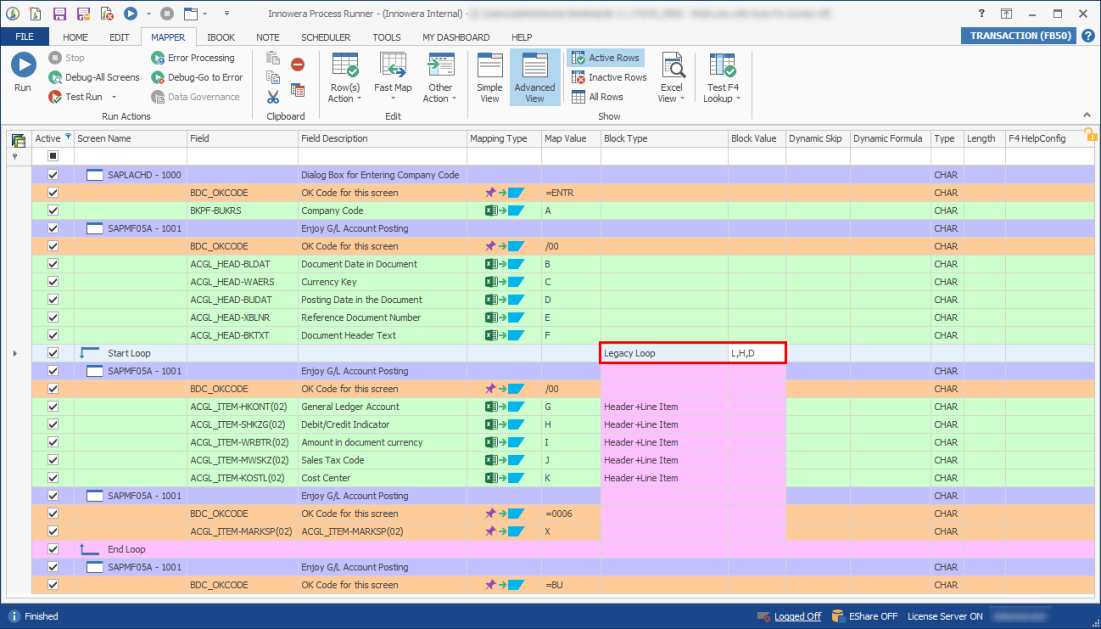
Note: The two fields to map for Header-Detail looping are Block Type and Block Value. These fields are to tell Process Runner how data in Excel file is arranged. Also, you must update the Block Type and Block Value in the same row as the Start Loop.
When you set loops to upload multiple line items information, you can map Excel Column Index (column name) or Excel Column Header text (Excel header cell) in the Block Value column. For information about mapping Excel header Cell, see Map Excel Header. Note that this feature does not support to loop when Block Type is set to Fix Block.